Slack Instructions
Screen shots are based on iOS app. Who knows what the droids look like. Desktop Slack App is similar operating procedures, but obviously, very different looking.
The big question, what happened to Calendy and Twitter. Short answer - Calendy was expensive and even HARDER to use, and Twitter (now X) was not providing quality coms that were consistent with F3’’s mission.
Here are some FAQ’s. The Slack instructions are below.
-
The Mission of F3 is the Plant Serve and Grow, small workout groups for men …
The old way did not support the mission.
The new scheduling tools in Slack empower our Pax to Serve and Grow our AO’s. By scheduling a Q, automating a pre-blast, Hard Committing to an AO, and completing a Back-blast by tagging the PAX and FNG’s that attend, the software in Slack enables the Northern Alliance and F3 Nation to collect data that will allow us to Serve and Grow, and support our 6.
-
If you are passionate about Accountability and the F3 Mission to SERVE and GROW our region, then YES.
Join Northern Alliance’s private Slack workspace: https://www.f3na.com/we-are-on-slack
Why?
By creating a Slack account, you are giving your Q’s the tools to tag you in pre and back-blasts, and that helps build the data the Northern Alliance needs to plant, build, and grow.
And, if you want to Q, you will need it to schedule.
Other than that, you never have to engage with Slack if you don’t want to.
-
See answer above.
Slack is NOT social media. We abandoned Twitter (X) for that very reason - Twitter was not supporting our mission. Slack does.
It is private - you have to have a dedicated link to join our Slack Workspace, and every Pax that joins in approved and moderated by the SLT.
The Northern Alliance link to join our Slack Workspace: https://www.f3na.com/we-are-on-slack
If you are passionate about Accountability and the F3 Mission to SERVE and GROW our region, then YES.
Why?
By creating a Slack account, you are giving your Q’s the tools to tag you in pre and back-blasts, and that helps build the data the Northern Alliance needs to plant, build, and grow.
And, if you want to Q, you will need it to schedule.
Other than that, you never have to engage with Slack if you don’t want to.
-
You can view the schedule in Slack, using /F3 (see instructions below).
However, the easiest way to see the schedule in a broad view, is to use the Pax Vault link on the website: https://pax-vault.f3nation.com/stats/region/41182
You can not schedule or edit Q’s in the Pax Vault - but we are working on that functionality.
-
HC is the “Hard Commit”.
This tells the Q you will be at the AO.
This tells your fellow Pax you will be at the AO.
This tell yourself you will be at the AO.
This data will support the Serve and Grow portion of the F3 Mission.
Note: the HC will automatically tag you in the Back-Blast also, so if you change your mind before the AO, you can un-HC in the pre-blast.
-
See the instructions below. But the short answer is, log into your Slack Account, and type /F3 into the message prompt. Follow the instructions.
-
The new software will Automatically post the AO’s pre-blast to the 1st F channel the DAY BEFORE the AO. If no Q has taken the AO, it will show up as “empty” and either the Site Q or any other Pax can “take the Q” right in the pre-blast. No special instructions or tools necessary.
If you are the Site Q, you CAN publish it earlier using the /F3 code (instructions below).
You can also edit the pre-blast once it has been published.
-
After you have Q’d the workout, simply type /F3 into any message prompt in Slack and select “Back-Blast”.
All of the PAX that Hard Committed in the Pre-Blast will already be tagged in the back-blast.
Tag other Pax who posted without a HC
Add an FNG’s or guests (they are likely NOT in Slack yet, so just type their name in)
Upload the flag picture.
If you have a video, upload it as a separate message in the AO’s channel (the software doesn’t like uploading videos for some reason)
-
Yes, in Slack.
If another Pax schedules you for a Q, F3 Nation will send you a DM letting you know (no secrets here).
F3 Nation will also send you a reminder 24 hours before you scheduled Q, prompting you to complete the pre-blast.
VIEW SCHEDULE IN SLACK
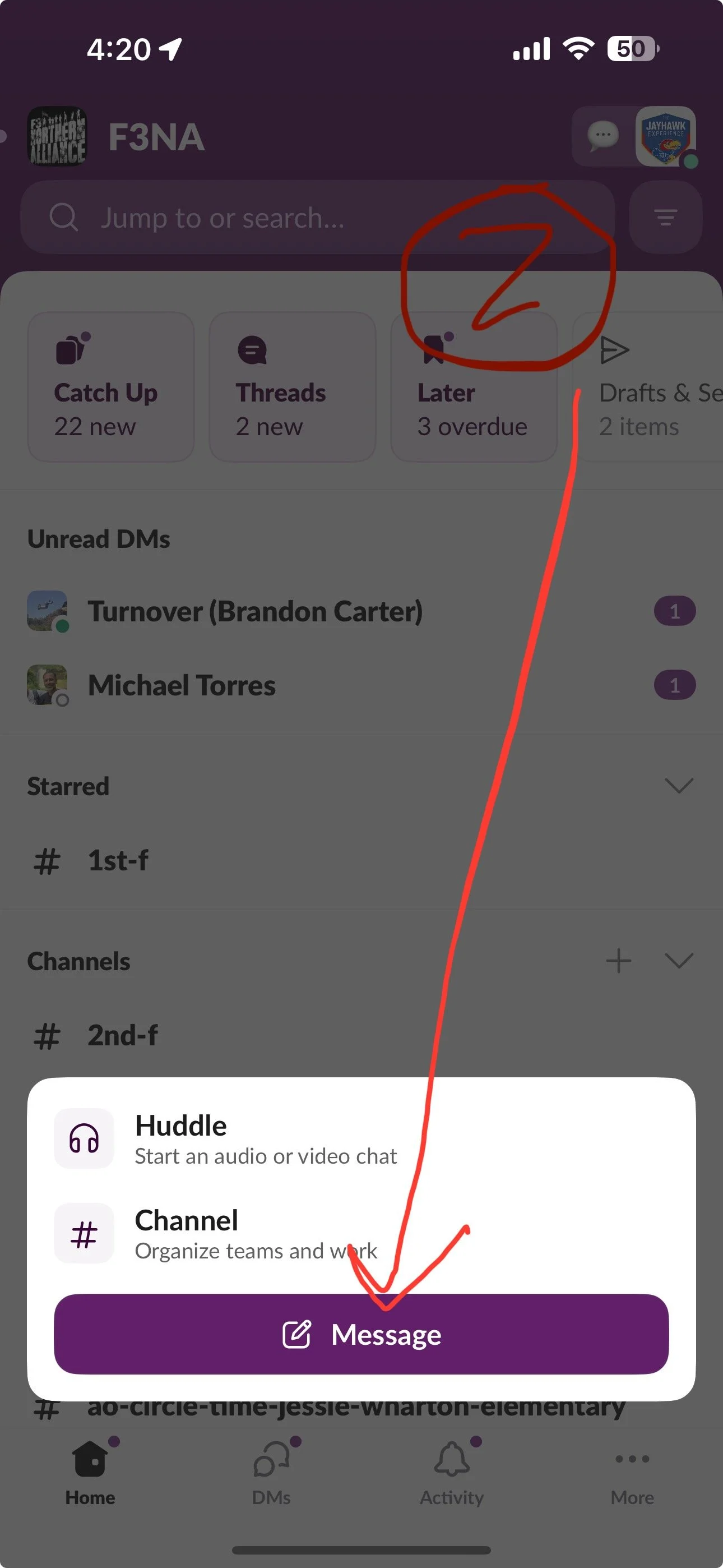
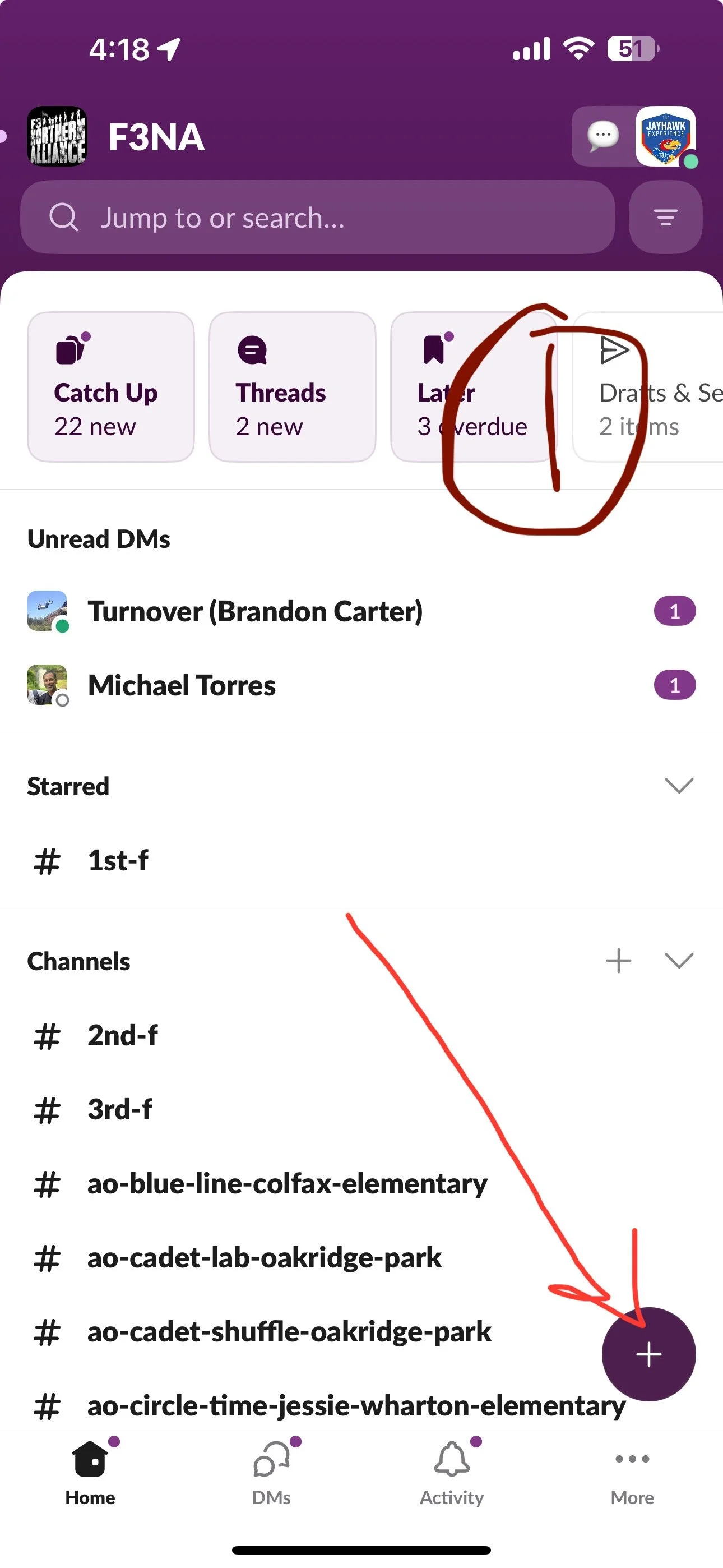
STEP #!: Get into your slack account. Push the purple + button
Step #2: Start a new message,
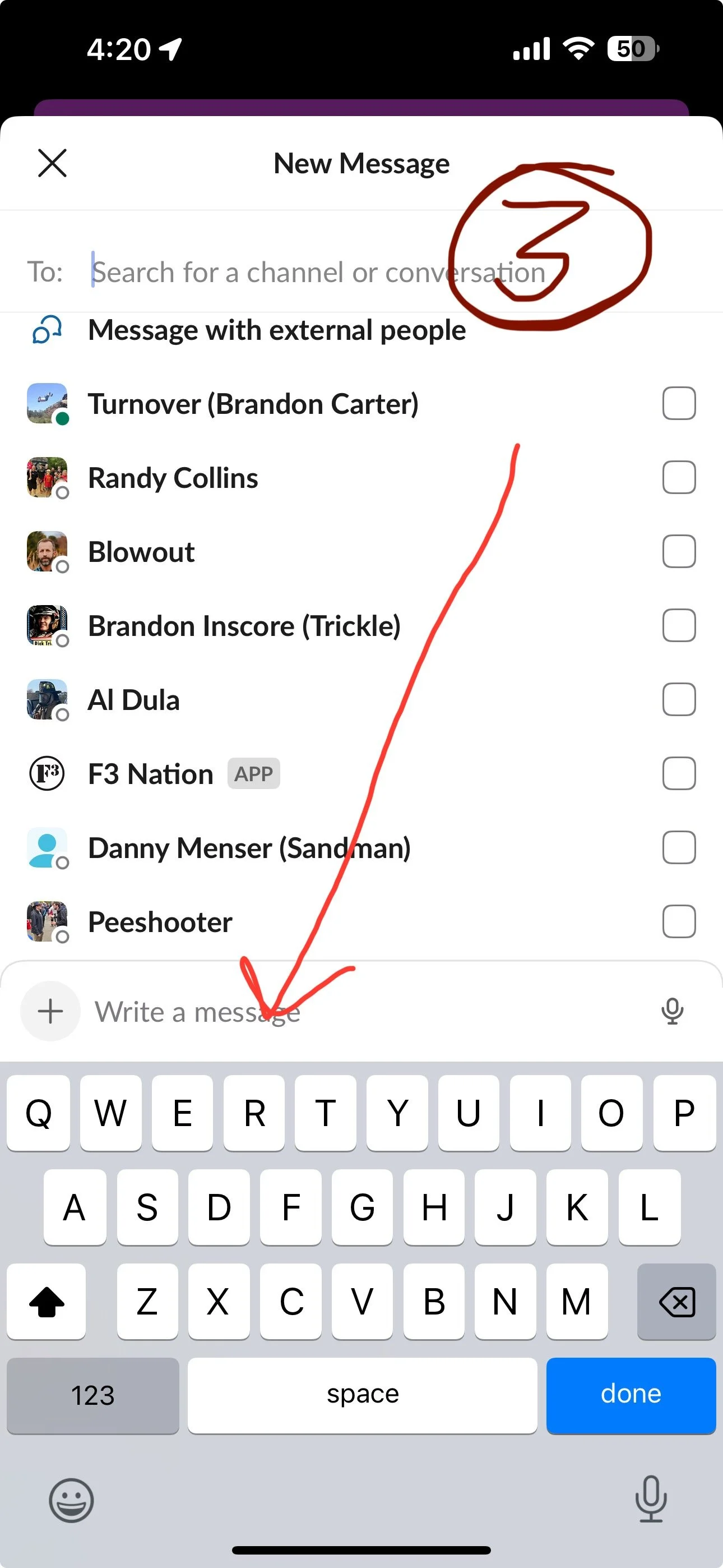
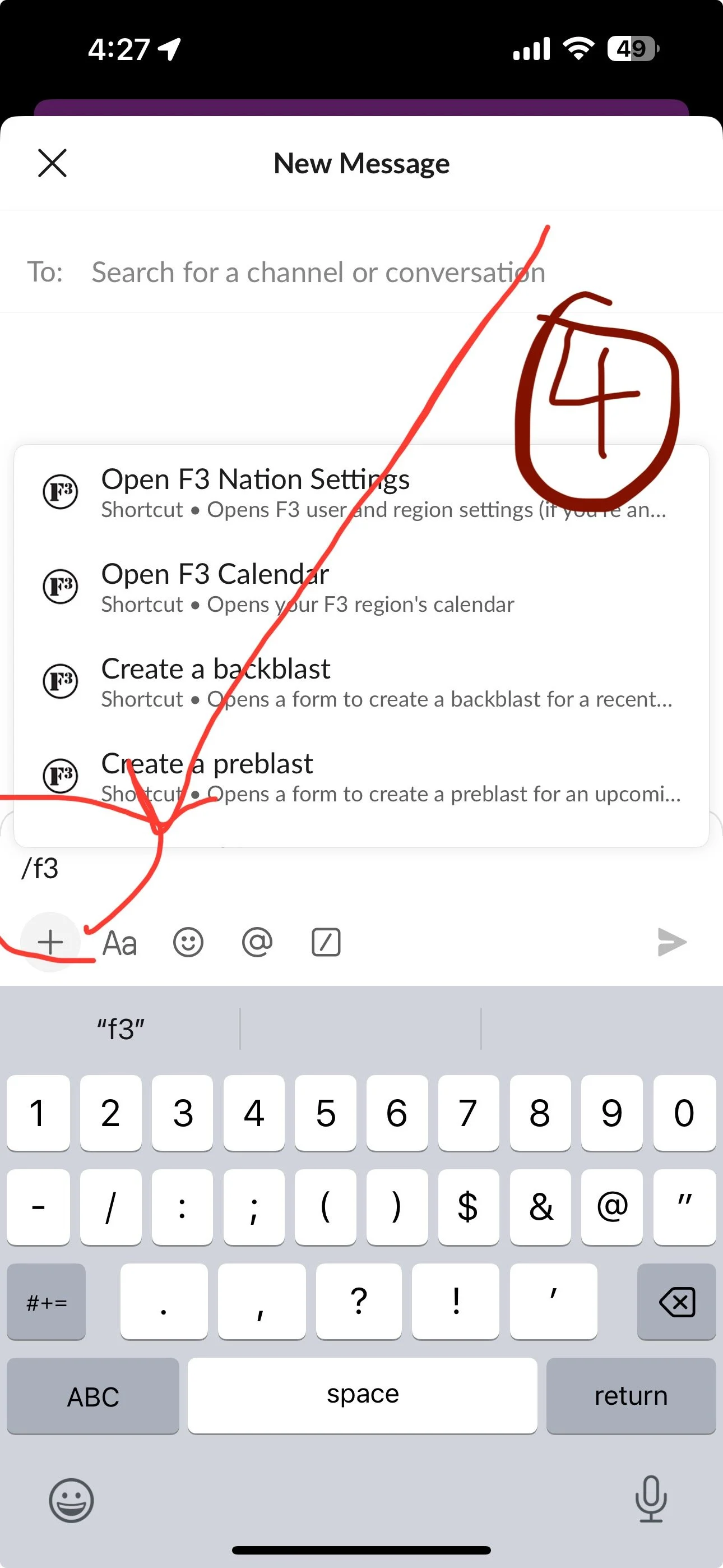
Step #3: Select the message prompt and type /F3
Type the /F3 prompt
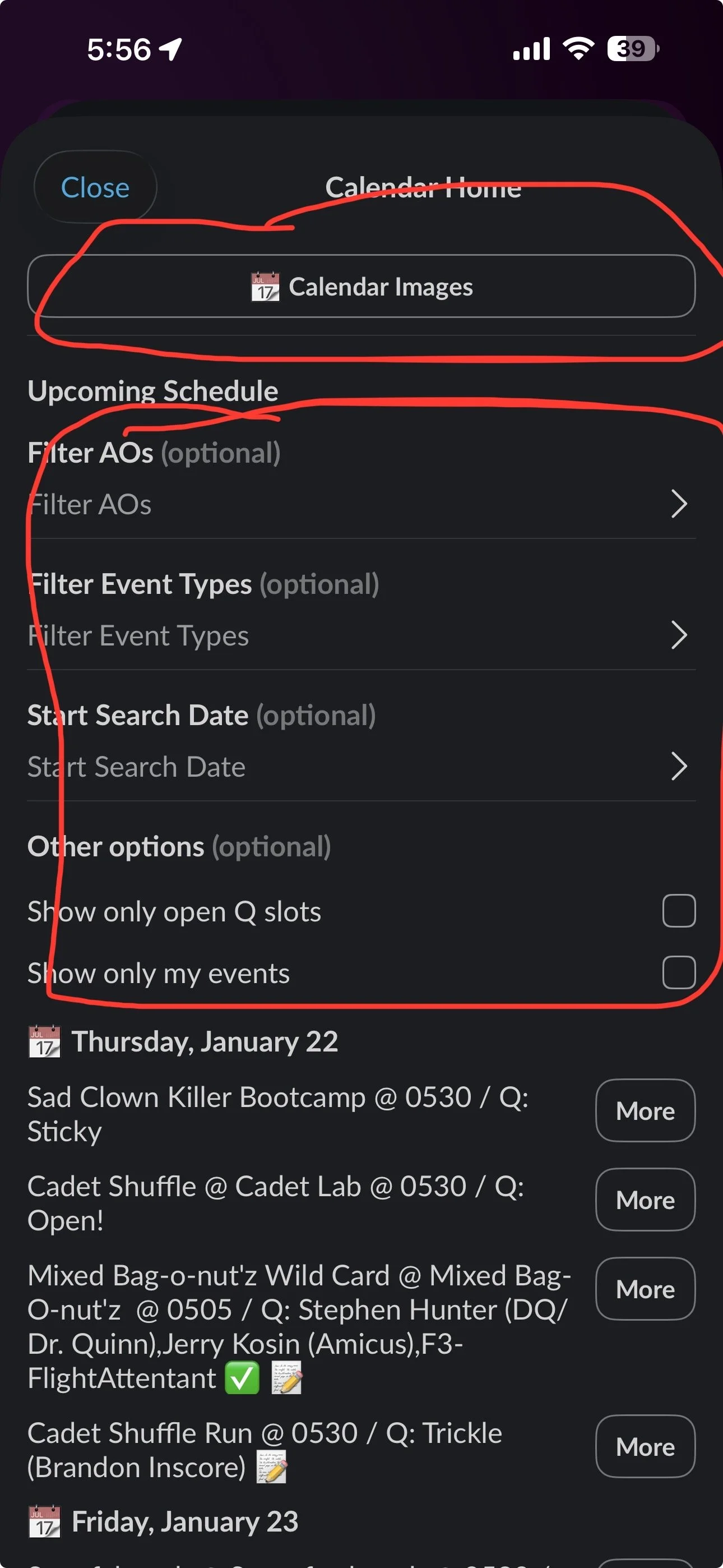
Step #5 View “Calendar Images”
Or
Step #6: Use the Filter tools to select a date range or a specific AO.
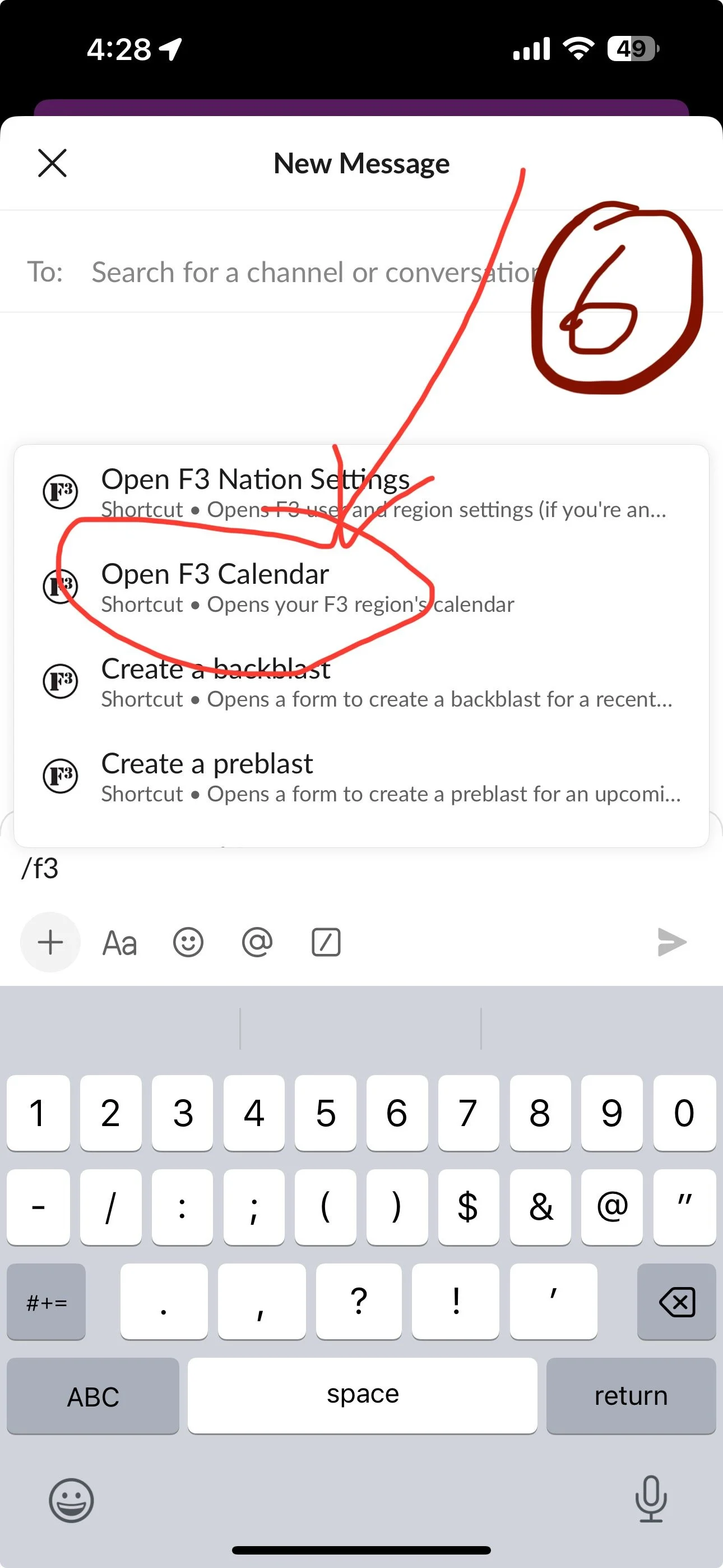
Step #4: select “Open F3 Calendar”.
It may take a second to load. Do a Merken and return to your phone.
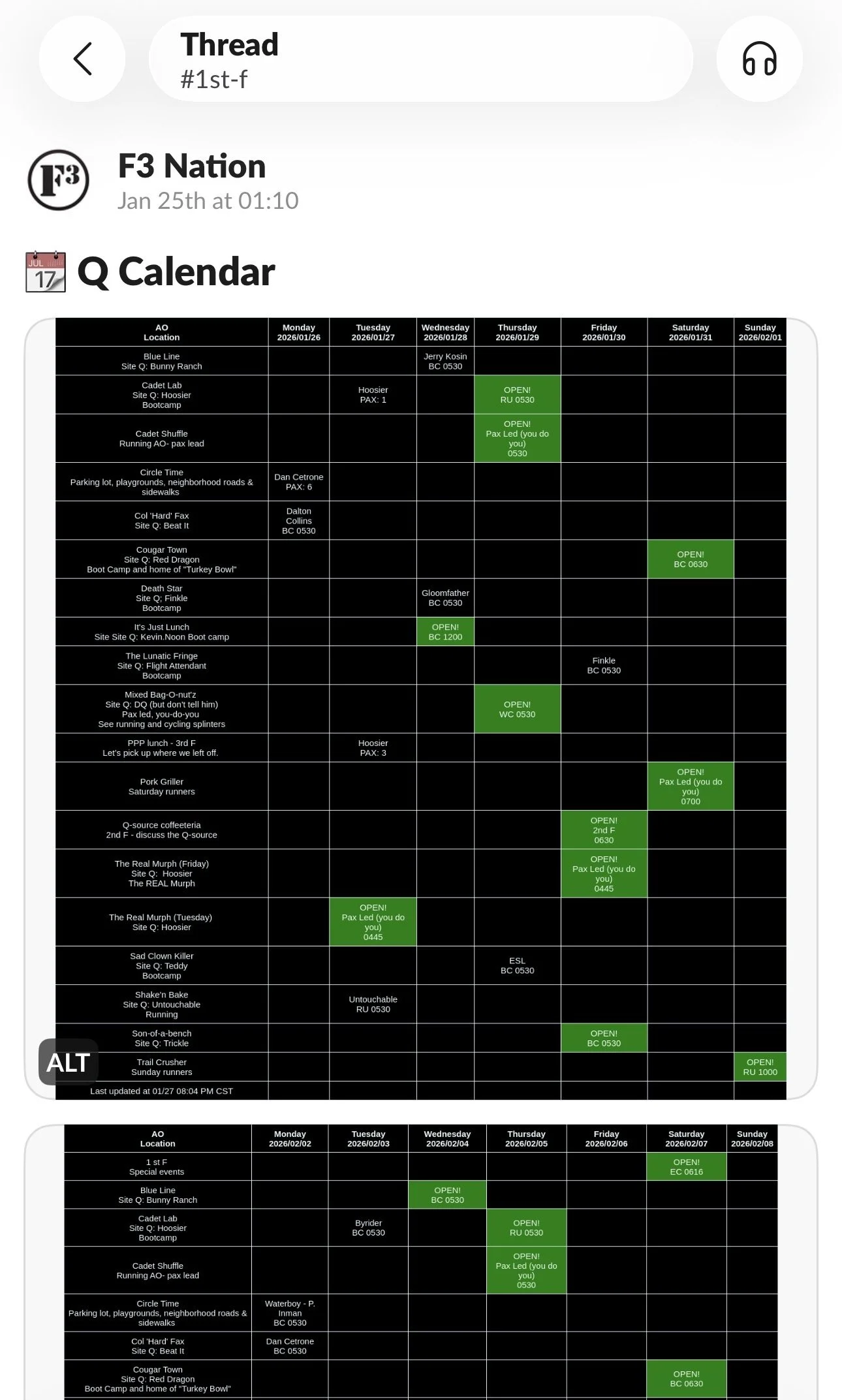
Step #5 continued: The schedule is an IMAGE, it is not editable or clickable.
The green boxes are AO’s that still need a Q
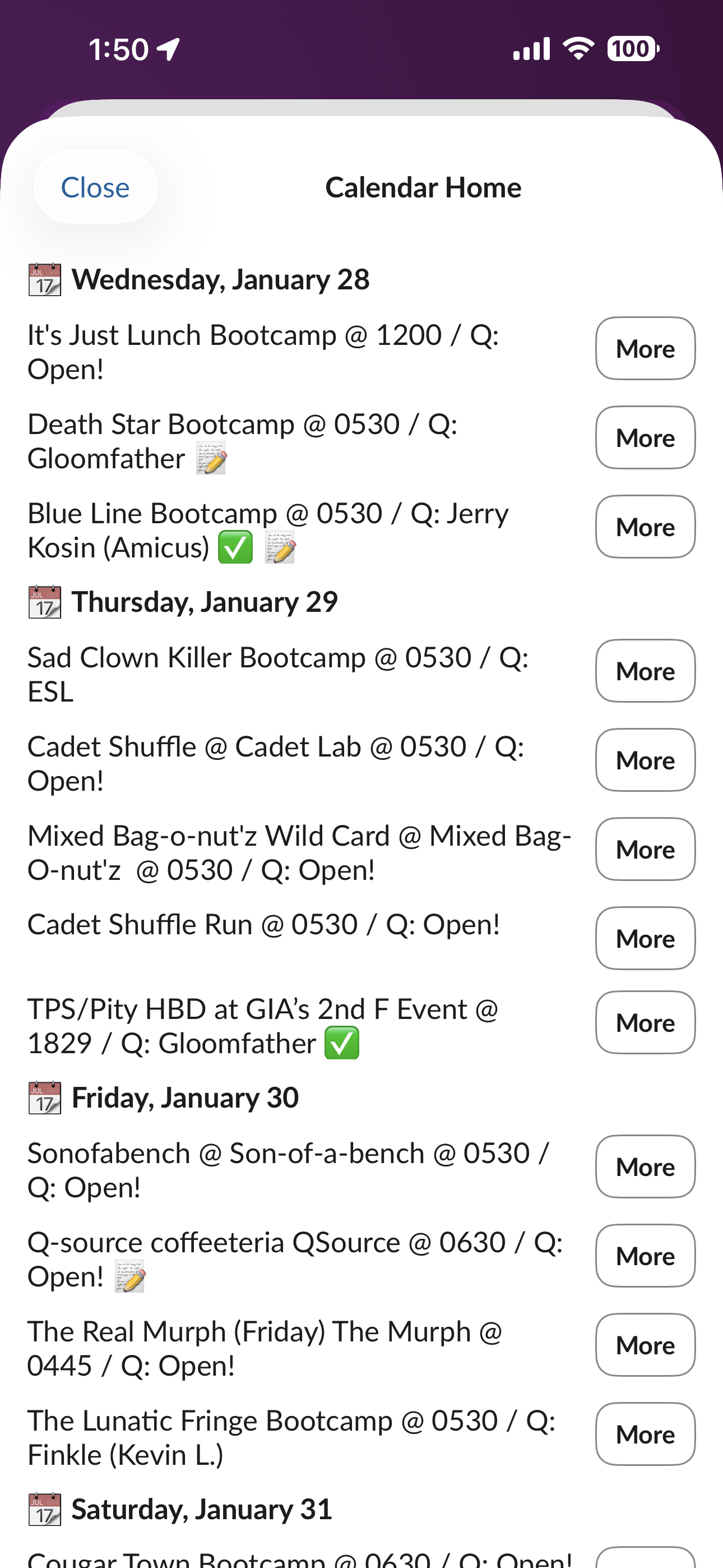
Step #6 continued: This schedule view is completely editable. Select “more” to Hard Commit, Take the Q, create a Pre-blast or see more information.
Note: if you assign a Q to another Pax, they will receive a message from F3 Nation in Slack announcing their assignment. You will also receive a “heads up” in Slack 24 hours before you are schedule to Q, prompting you to complete a Pre-blast
Sign up to Q | Assign Q | Write Pre-Blast and Back-Blast
Get into your slack account. Push the purple + button and start a message. The tools live here.
select “Open F3 Calendar”
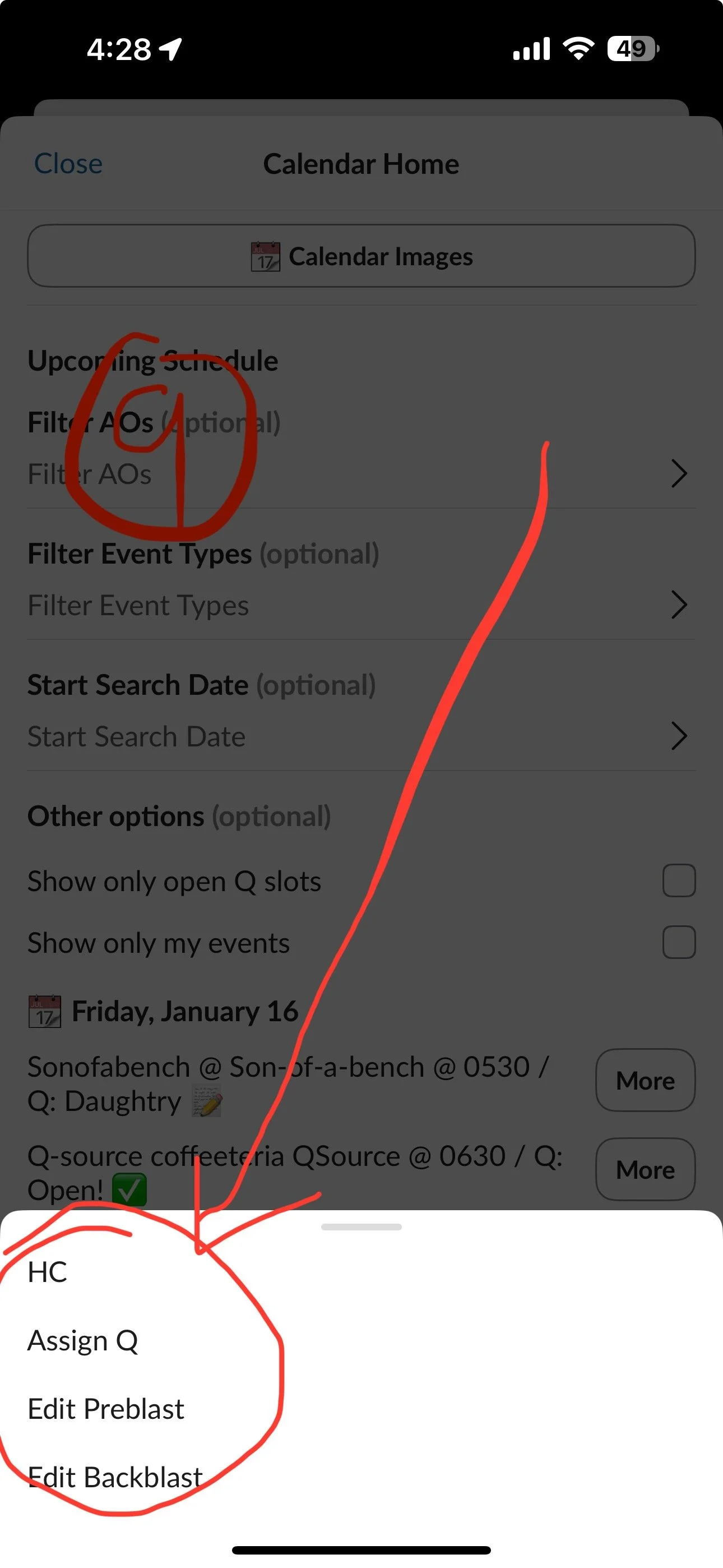
You can HC here, Assign a Q, and edit the pre-blast or backblast.
Type the /F3 prompt
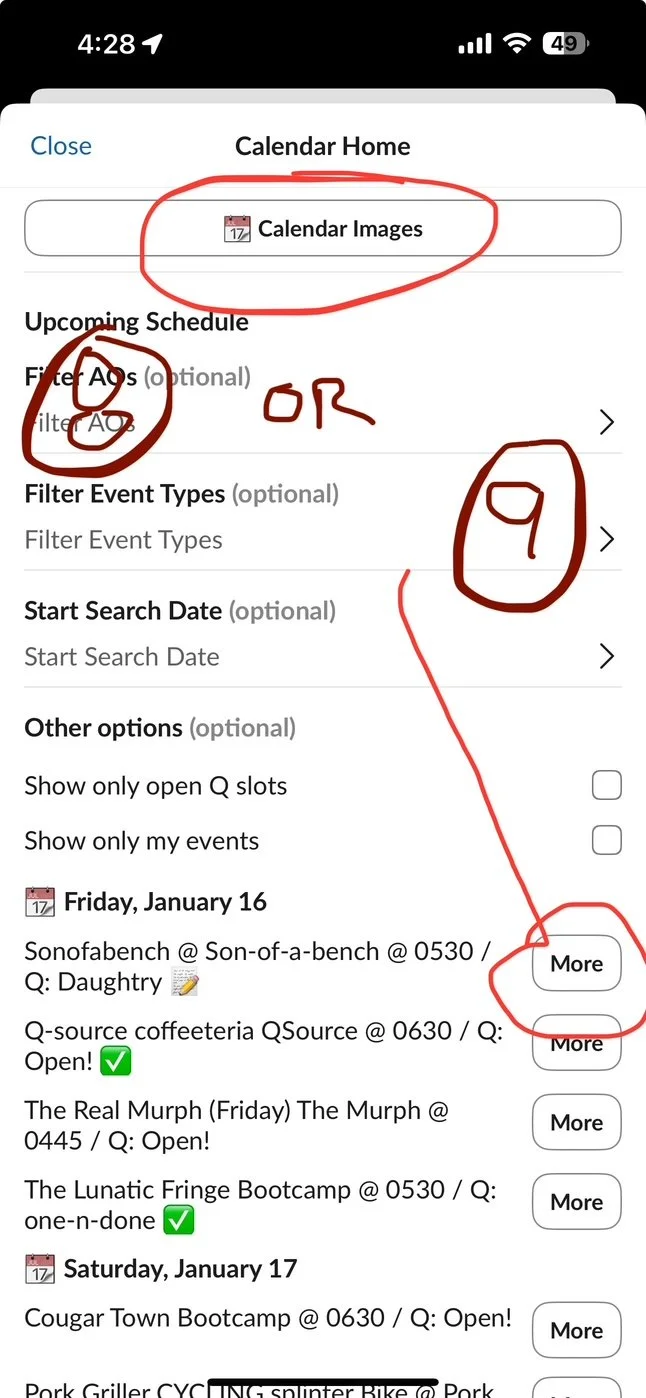
Scroll through the list, or use the Filters to select a date or specific AO. The click “More”
Notes:
24 hours before you Q, Slack will send you a DM from “F3 Nation” reminding you of your Q.
If you assign a Q to a Pax, that Pax will receive an immediate DM from “F3 Nation” announcing the assignment.
Pre-blast. Slack will automatically send out a Pre-Blast for the AO even if no Q is signed up. The Pre-Blast is KEY to getting Pax to Hard Commit. The Pre-blast will automatically show up in 1st F channel.
Back-blast follow up. Much of the information from your Pre-blast will already be there. Add the missing Pax, any FNG’s, splinters and EC. Include and information about the AO including any COT announcements. Upload photos if you have them.
Note: The Back-Blast tool is not great for the video. Upload that in a separate message.
Back-Blasts default to the AO’s slack channel.
VIEW THE SCHEDULE IN PAX VAULT
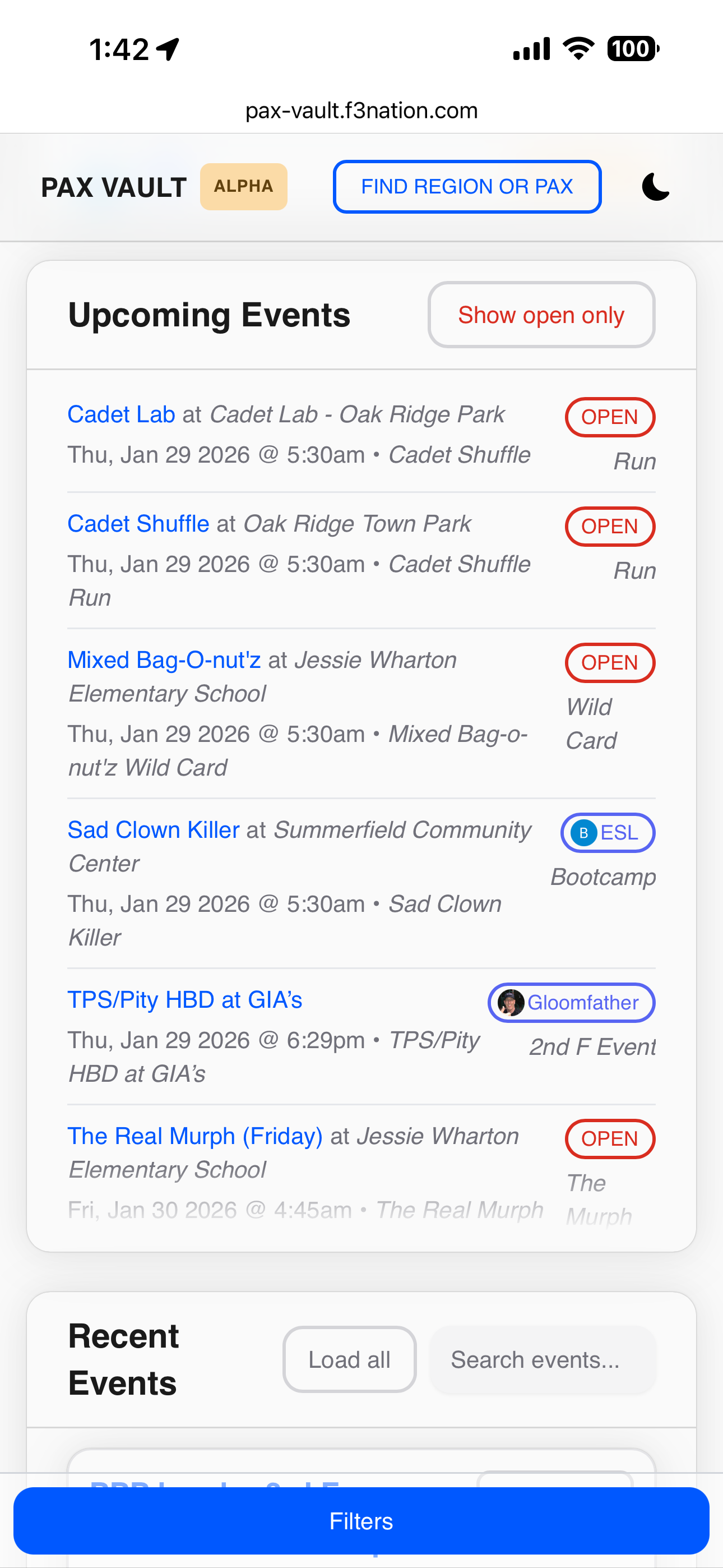
Visit Pax Vault: https://pax-vault.f3nation.com/stats/region/41182
This is the easiest way to see the long term schedule for each AO.
Notes:
we are still working on functionality to see ALL AO’s at one time. We are getting there. If you want to see ALL of them at once, you have to go through Slack, see instructions below.
PAX VAULT does not offer the functionality to sign up for or edit Q’s or preblasts… it is JUST a visual calendar. We are working on fixing this.